Thursday, November 1, 2012

Querying TFS using Roslyn

Roslyn is an ambitious new project by Microsoft. It is the fully written in .Net replacement of the old compilers used in Visual Studio and should be shipped in a future version of the IDE. The current compilers csc.exe and vbc.exe were first shipped in version 1.0 of .Net more than 10 years ago.

Roslyn offers a lot of new possibilities. As of today Roslyn in still is in CTP and the latest release was in September 2012. For this first post on Roslyn I want to explore the new C# Interactive window (you will need to download and install the CTP for that).

For this demonstration I'll use one of my previous query for LinqPad, Searching in all work items.

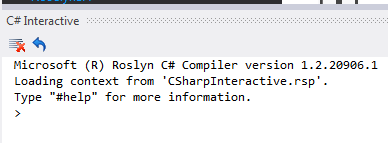
First we need to open the C# Interactive window (from menu VIEW -> Other Windows -> C# Interactive)


Then we start by referencing the required libraries using the special #r instruction
> #r "Microsoft.TeamFoundation.Client"
> #r "Microsoft.TeamFoundation.Common"
> #r "Microsoft.TeamFoundation.VersionControl.Client"
> #r "Microsoft.TeamFoundation.WorkItemTracking.Client"

Next we need to import the namespaces we are going to use with the using statement like this
using Microsoft.TeamFoundation.Client;
using Microsoft.TeamFoundation.WorkItemTracking.Client;

Now we are ready to write some real code. I'll be using my online Team Foundation Service account for this. You can register for a free account here.
> var uri = new Uri("https://my.visualstudio.com/DefaultCollection/");

> var tfs = TfsTeamProjectCollectionFactory
    .GetTeamProjectCollection(uri);

> tfs.EnsureAuthenticated();

> var workItemStore = tfs.GetService<WorkItemStore>();

> var title = "phone";

> var query = string.Format(@"
    Select [Id], [Work Item Type], [Title], [State]
    Where [Title] Contains '{0}'
    From WorkItems",
    title);

> var results = workItemStore.Query(query).Cast<WorkItem>()
    .Select(wi => new
    {
        wi.Id,
        wi.AreaPath,
        Type = wi.Type.Name,
        wi.Title,
        wi.State
    })
    .OrderBy(wi => wi.AreaPath).ThenBy(wi => wi.Type).ThenBy(wi => wi.Title);

Of course we don't have access to LinqPad's Dump function so we have to print the results ourself.
> foreach (var r in results)
{
    Console.WriteLine("{0} - {1} [{2}] {3} <{4}>", 
        r.Id, r.AreaPath, r.Type, r.Title, r.State);
}
2 - Project1 [Bug] Bug #1 - Fix the phone number on the Contact page <New>

I think using LinqPad is still easier for this kind of work but those who don't have a paid version of LinqPad will like the facts that Roslyn is free, offers a way to write queries using Intellisense and also a more interactive way to work and find the data you are looking for.

Sunday, October 7, 2012

How to reference and reuse LinqPad queries

One missing feature from LinqPad is the ability to easily reuse code in a query we wrote in other queries.

If we really want to do it we have the following options:
  • Copy and paste the code into the new query
  • Open Visual Studio, create a project, create a class and copy the code you want to reuse. Compile the project and finally reference the generated dll from your query.
  • Compile the LinqPad query directly (using a special script), then reference the generated dll from your query.

Today we will look at the third option. Found in the .Net framework is a very interesting API called the CodeDOM API. This API can be used to compile .Net code at run-time, like the compiler does. With this, we will be able to parse a LinqPad query and compile it.

This is what we will look into right now.

Compiling a LinqPad query


Those are the steps we need to do to accomplish query compilation:
  1. Read the query and extract the options, usings and references
  2. Create the CodeDOM objects and set the options and references
  3. Create a string of the code file including the usings and wrap the query code inside a class
  4. Compile the code

I'll explain in details each steps in future blog posts but for now I'll give you my query to compile LinqPad queries. You will notice that this is a self compiling query as the query compile itself to a dll I can reuse it to compile other queries!


You can figure out the Compiler class usage from the Main function for now.

Additional Namespace Imports

System.CodeDom.Compiler
System.Runtime.InteropServices
Microsoft.CSharp

Query (C# Program)


Tuesday, September 18, 2012

Using NuGet with LinqPad for free

Recently LinqPad got a great integration with NuGet in the paid version of the software

Unfortunately for the user of the free version it is a bit more difficult to use NuGet but it's not impossible.

Today I'm going to show you a way to use NuGet to get libraries into your LinqPad queries.

NuGet Package Explorer


You can download the NuGet Package Explorer from CodePlex

The primary use for this tool is to explorer, edit and publish NuGet packages. You could also use this tool to extract the files contained in the packages and put them in a folder, and that's what we'll do now.

First we need to Open a package from online feed


Here we could query for the package we want.


Select a package and click OK. We can now take a peek inside the package if we want. For us, we want to Export the content from the File menu.


You need choose a folder where to export the files of the package. Finally, in LinqPad we need to add a reference to the DLL by going in the Query Properties (F4) and clicking Browse. After that we are ready to start writing our queries.

Using the NuGet local cache folder


One another tip I've got for you is to add the local NuGet cache folder to the list of online feed as a shortcut for when we want to access a package we previously downloaded with the NuGet Package Explorer or even Visual Studio.

First, from the Tools menu select View NuGet download cache.


This will open a Windows Explorer on the folder %AppData%\Local\NuGet\Cache.


Now copy this path, go back to NuGet Package Explorer and Open a package from online feed. Then paste the path into Package source field and click Reload.


From now on you will be able to choose between the official NuGet.org feed and your local cache when you want to open NuGet packages.

NuGet.exe


Of course for the hardcore user of the command line interface one could use nuget.exe directly to download and extract the files rather than using the Package Explorer. I'm definitely not that hardcore. :-)

NuGet.exe is also available from the CodePlex site.

Friday, August 31, 2012

Using log4net MemoryAppender for unit testing

Sometimes unit testing existing code can be really hard. Especially when coding by exceptions (using Try.. Catch.. then do nothing!).

This will look a bit like this


From the outside we might not be able to test whether ReallyDoSomething has thrown an exception except if we can validate state changes done by ReallyDoSomething. And if we can't change the code much (like adding dependencies using parameters or change the return type of the method) we won't be able to write that test at all.

Another way is to use the logger to validate that.

The piece of code above use Log4Net as the logging framework and allow us to use it in our unit tests like this


Just like that we can intercept all the logged messages by our production code.

I've used this trick a few times now when other options were not available. Hope it helps.

Wednesday, August 15, 2012

TFS Queries : Searching in all work items

For an intro on LinqPad and the TFS API please read this post
For the list of all the posts in this series please read this one

Context


To search for work items effectively we can use a special TFS API on the WorkItemStore class. The query format is based the Work Item Query Language (or WIQL ) and we can't use Linq directly, but still, we can use LinqPad to write a quick little query.

Required references


Microsoft.TeamFoundation.Client
Microsoft.TeamFoundation.Common
Microsoft.TeamFoundation.VersionControl.Client
Microsoft.TeamFoundation.WorkItemTracking.Client

Query (C# Statements)

var tfs = TfsTeamProjectCollectionFactory
    .GetTeamProjectCollection(new Uri("http://localhost:8088/tfs"));

tfs.EnsureAuthenticated();

var workItemStore = tfs.GetService<WorkItemStore>();

var title = "phone";

var query = string.Format(@"
    Select [Id], [Work Item Type], [Title], [State]
    Where [Title] Contains '{0}'
    From WorkItems",
    title);

workItemStore.Query(query).Cast<WorkItem>()
    .Select(wi => new
    {
        wi.Id,
        wi.AreaPath,
        Type = wi.Type.Name,
        wi.Title,
        wi.State
    })
    .OrderBy(wi => wi.AreaPath).ThenBy(wi => wi.Type).ThenBy(wi => wi.Title)
    .Dump();

Result


Here we get the list of all the work items from all projects containing the word 'phone' in their title.

To find more about WIQL please take a look at the MSDN section on it.


IOrderedEnumerable<> (1 item)
Id AreaPath Type Title State
2 Project1 Bug Fix the phone number on the Contact page Done

Wednesday, August 1, 2012

TFS Queries: Listing all the branches

For an intro on LinqPad and the TFS API please read this post
For the list of all the posts in this series please read this one

Context


When it comes to branches, using the TFS Web Access or Team Explorer we can navigate around the source code explorer to see branches from various Team Project and related information. But to get the big picture there is an easier way using the TFS API.

Required references


Microsoft.TeamFoundation.Client
Microsoft.TeamFoundation.Common
Microsoft.TeamFoundation.VersionControl.Client

Query (C# Statements)

var tfs = TfsTeamProjectCollectionFactory.
    GetTeamProjectCollection(new Uri("http://localhost:8088/tfs"));

tfs.EnsureAuthenticated();

var versionControl = tfs.GetService<VersionControlServer>();

versionControl.QueryRootBranchObjects(RecursionType.Full)
    .Where(b => !b.Properties.RootItem.IsDeleted)
    .Select(s => new
    {
        Project = s.Properties.RootItem.Item
            .Substring(0, s.Properties.RootItem.Item.IndexOf('/', 2)),
        Properties = s.Properties,
        DateCreated = s.DateCreated,
        ChildBranches = s.ChildBranches
    })
    .Select(s => new 
    {
        s.Project,
        Branch = s.Properties.RootItem.Item.Replace(s.Project, ""),
        Parent = s.Properties.ParentBranch != null ?
            s.Properties.ParentBranch.Item.Replace(s.Project, "") : "",
        Version = (s.Properties.RootItem.Version as ChangesetVersionSpec)
            .ChangesetId,
        DateCreated = s.DateCreated,
        Owner = s.Properties.Owner,
        ChildBranches = s.ChildBranches
            .Where (cb => !cb.IsDeleted)
            .Select(cb => new
            {
                Branch = cb.Item.Replace(s.Project, ""),
                Version = (cb.Version as ChangesetVersionSpec).ChangesetId
            })
    })
    .OrderBy(s => s.Project).ThenByDescending(s => s.Version)
    .Dump();

Result


Here we can see a bit more information on the branches like related parent and child branches in a simple list.


IOrderedEnumerable<> (4 items)
Project Branch Parent Version DateCreated Owner ChildBranches
$/Project1 /Release v1.1.0.0 /Main 14 04/07/2012 9:18:01 PM Domain\Pascal
IEnumerable<> (0 items)
$/Project1 /Main   8 28/06/2012 10:24:05 PM Domain\Pascal

IEnumerable<> (1 item)
Branch Version
/Release v1.1.0.0 14
$/Project2 /Team /Main 13 04/07/2012 9:17:24 PM Domain\Pascal
IEnumerable<> (0 items)
$/Project2 /Main   12 04/07/2012 9:17:02 PM Domain\Pascal

IEnumerable<> (1 item)
Branch Version
/Team 13
47

Wednesday, July 4, 2012

TFS Queries: Generating a changelog from the branch history

For an intro on LinqPad and the TFS API please read this post
For the list of all the posts in this series please read this one

Context


If you ever need to produce a changelog for a release you could do it by hand, looking at all the work items associated with the changesets or you could use the TFS API to generate it automatically.
Required references


Microsoft.TeamFoundation.Client
Microsoft.TeamFoundation.Common
Microsoft.TeamFoundation.VersionControl.Client
Microsoft.TeamFoundation.WorkItemTracking.Client

Query (C# Statements)

var branch = "$/Project1/Main";
var fromVersion = new ChangesetVersionSpec(1);
var toVersion = VersionSpec.Latest;

var tfs = TfsTeamProjectCollectionFactory
    .GetTeamProjectCollection(new Uri("http://localhost:8088/tfs"));

tfs.EnsureAuthenticated();

var versionControl = tfs.GetService<VersionControlServer>();

var history = versionControl.QueryHistory(branch, VersionSpec.Latest, 0, 
    RecursionType.Full, null, fromVersion, toVersion, int.MaxValue, false, 
    false, false);

history.OfType<Changeset>()
    .Select(x => new
    {
        x.ChangesetId,
        x.CreationDate,
        x.Committer,
        x.Comment,
        WorkItems = x.WorkItems.Select(wi => new
        {
            wi.Id,
            wi.Title,
            wi.Description,
            wi.State,
            wi.Reason
        })
    })
    .Dump("Branch history of: " + branch + 
        " from " + fromVersion.DisplayString + " to " + toVersion.DisplayString);
 
history.OfType<Changeset>()
    .OrderBy(x => x.ChangesetId)
    .SelectMany(x => x.WorkItems)
    .Select(wi => string.Format("[{0}] {1} #{2} - {3}", 
        wi.Reason, wi.Type.Name, wi.Id, wi.Title))
    .Dump("Changelog of branch: " + branch + 
        " from " + fromVersion.DisplayString + " to " + toVersion.DisplayString);

Result


With this we will get the list of all the changesets and associated work items from the history of the given branch.

Branch history of: $/Project1/Main from C1 to T


IEnumerable<> (4 items)
ChangesetId CreationDate Committer Comment WorkItems
11 28/06/2012 10:42:14 PM Domain\Pascal Change the phone number

IEnumerable<> (1 item)
Id Title Description State Reason
2 Fix the phone number on the Contact page   Done Work finished
10 28/06/2012 10:39:58 PM Domain\Pascal Changed the version to 1.1.0.0

IEnumerable<> (1 item)
Id Title Description State Reason
1 Change the version number to 1.1.0.0   Done Work finished
9 28/06/2012 10:31:55 PM Domain\Pascal Created a MVC4 Mobile application
IEnumerable<> (0 items)
8 28/06/2012 10:23:52 PM Domain\Pascal Added Main folder for the branch
IEnumerable<> (0 items)
Changelog of branch: $/Project1/Main from C1 to T


IEnumerable<String> (2 items)
[Work finished] Task #1 - Change the version number to 1.1.0.0
[Work finished] Bug #2 - Fix the phone number on the Contact page